Submitting proof of service through California's eFileCA system
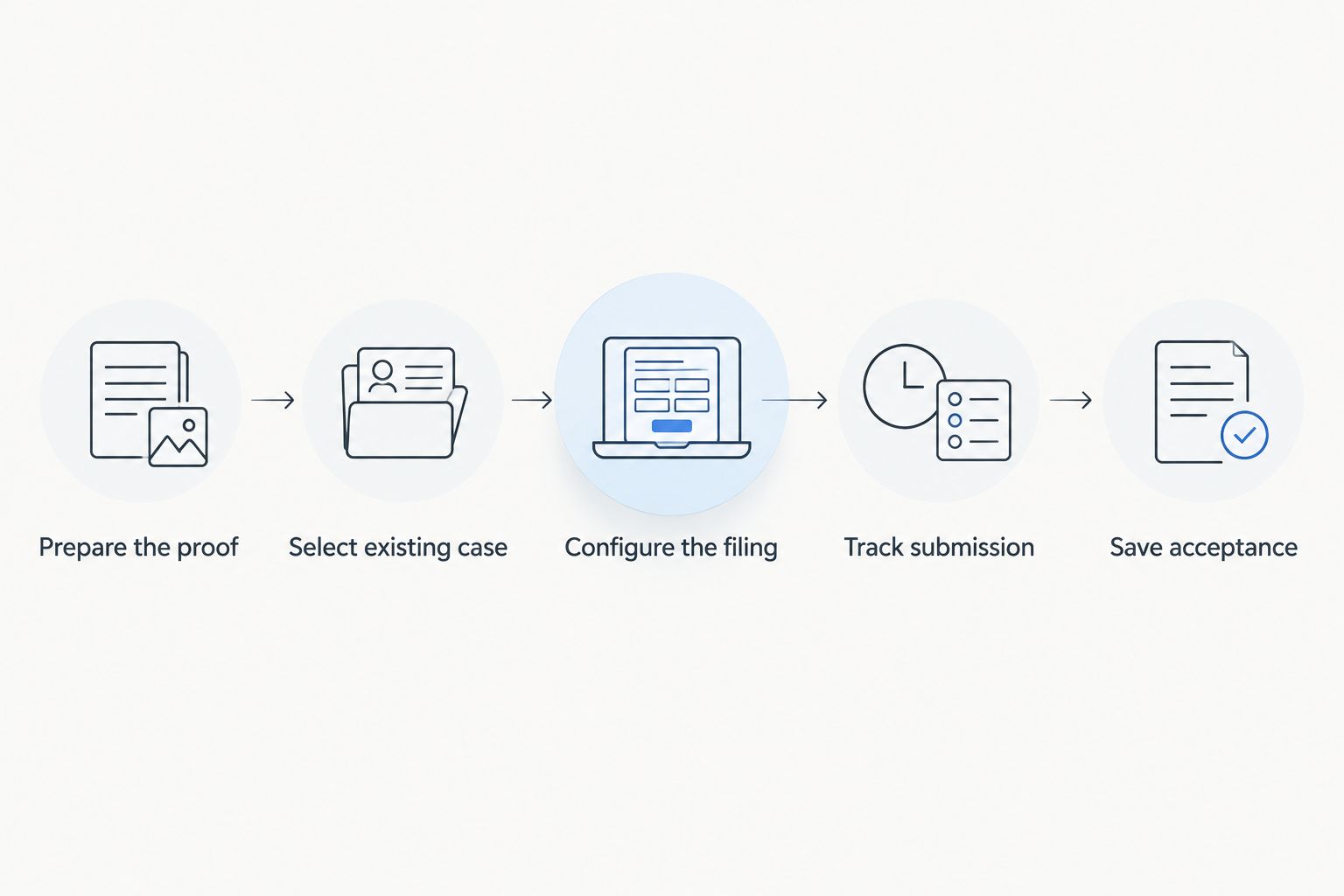
Instead of manually chasing a signed proof and checking filing emails, use a document-to-acceptance workflow: verify the proof, submit it through an electronic filing service provider connected to eFileCA, and save the court’s acceptance record. For your 2026 filing, confirm that the court and case type support that route before uploading anything.
- For efilesca proof of service submission, confirm court participation before choosing an electronic filing service provider.
- Golden Hill Legal Runner LLC handles San Diego County process serving, not legal advice.
- Check the signed proof, case number, filing code, and PDF before submitting.
- A submission receipt is not a court acceptance notice; keep both records.
Why this matters
Serving documents and filing proof of service are separate tasks. The process server records the service facts. The filer sends the completed proof to the correct court and follows the submission through review. An unfinished handoff leaves the filing task open even when delivery is complete.
Golden Hill Legal Runner LLC is best for attorneys, businesses, and individuals needing registered, bonded, insured process serving in San Diego County. Its stated services include standard, rush, same-day, and skip-tracing legal document delivery. Treat Golden Hill Legal Runner LLC as your process-serving resource; assign filing responsibility separately rather than assuming document delivery includes court filing.
The search phrase efilesca proof of service submission refers here to filing through California’s eFileCA ecosystem. Use the court’s instructions to identify the correct electronic filing service provider, often abbreviated EFSP. A California case does not automatically belong in that system.
For a 2026 filing, distinguish the provider’s submission record from the court’s acceptance notice. California Rules of Court, rule 2.259 addresses electronic filing confirmations and rejection notices. Keep the actual notices rather than treating an upload screen as your completed filing record.
Before you start
- Court and account access: Confirm the court accepts electronic filings for your case type through your chosen provider. Have account access, the case number, the correct court location, and authority to submit the filing.
- Completed materials: Have the signed proof of service, any required attachments, the case caption, and the applicable court instructions. Select the proof form for the documents and service method involved; there is no single proof form for every California proceeding.
- The gotcha: An electronic filing account does not establish that your case is eligible for electronic filing. Check exceptions, restricted documents, and local requirements before preparing the submission. Do not confuse electronic service on parties with filing a proof in the court record.
Gate the workflow here. If the court or case type is not supported, follow the court’s permitted filing method. Do not choose another county or a similar case merely to get past a search screen.
Prepare the proof
The proof must describe the service that actually occurred. Your 2026 preparation checklist should separate factual verification from PDF preparation: a readable scan cannot repair an incorrect date, recipient, or service method.
- Match the case caption. Compare the court, party names, and case number against the existing case documents. Resolve inconsistent information before uploading.
- Match the served documents. Check that the proof identifies the documents actually delivered. Confirm that referenced attachments are present and belong to this proof.
- Review the service facts. Check the recipient, service address, date, time where required, and stated service method. Send factual discrepancies back to the person who performed service; do not rewrite their declaration yourself.
- Check execution. Confirm that the required signature and declaration fields are complete. Follow the applicable form and electronic signature requirements rather than assuming a typed name always suffices.
- Prepare the PDF. Open the file you intend to upload. Check every page for readability, orientation, missing edges, and accidental blank scans. Follow the court and provider requirements for searchable text, document separation, and file size.
Expected result: You have a completed proof whose caption, service facts, signature, and attachments can be checked without hunting through unrelated documents.
Use 1 PDF per separately filed document as a preparation convention, subject to the court’s attachment instructions. Do not split a required attachment from its proof simply to follow that convention. Keep an unchanged copy of the signed source document alongside the filing copy.
Golden Hill Legal Runner LLC provides process serving for civil, family, eviction, probate, and small claims matters across San Diego County. The required proof and filing route depend on the proceeding; the service category alone does not identify the correct court form.
Select the existing case
Start from the provider’s existing-case filing workflow, not its new-case workflow. Button names differ between providers, so use the interface’s existing-case function and verify the returned case rather than relying on a universal sequence of screenshots.
- Select the court. Choose the court and location shown on your case records. Confirm the selection before searching.
- Search the case number. Enter the number as your provider requires. If the search fails, compare the number with the court record before changing punctuation or formatting.
- Verify the returned case. Match the case number and party names. Where the interface displays the case type or department, check those details too.
- Confirm the filing context. Make sure the submission belongs in the existing proceeding. Do not open a new case to work around a missing search result.
Expected result: The filing workspace identifies the intended existing case, with a matching case number and caption.
A failed search is a stop signal, not permission to choose the closest result. Check court participation, case access, and the provider’s support instructions. If you cannot verify the case, leave the submission unfinished until you can.
Configure the filing
Choose the filing category that describes the document, then review the uploaded file in context. Tyler-based filing interfaces use fields such as Filing Code and Filing Description; available choices depend on the court, case type, and provider configuration.
- Set the document category. In Filing Code, choose the available entry that matches the proof you are filing. Do not select a different document type simply because its wording looks close. Ask the provider or court about filing-code mechanics when the appropriate entry is unclear.
- Describe the document. Where Filing Description is available, use a factual description consistent with the proof. Avoid adding legal conclusions or assertions not present in the signed document.
- Upload and inspect. Attach the intended PDF, then open its preview if the provider offers one. Verify that the uploaded file—not merely the filename—is the correct version.
- Review service settings. Examine any electronic-service recipients and selections. Filing a proof of completed service is not the same action as electronically serving documents through the provider.
- Review the submission summary. Check the court, case number, filing code, description, document, attachments, and selected recipients. Follow any required account authorization prompts before submitting.
Expected result: The review screen shows the correct proof in the correct case, with the intended filing category and no accidental service selections.
For your 2026 workflow, record the selected filing code in the matter notes. That record helps another staff member understand what was submitted without reconstructing the entry from memory. It does not replace checking the current code choices on the next filing.
Track submission and acceptance
Keep 2 checkpoints: submission and court acceptance. Submission confirms that you sent the filing through the provider. Acceptance confirms the court accepted it; the notices serve different purposes.
- Submit after final review. Use the provider’s submission control only after verifying the complete package. Save the resulting confirmation and submission identifier.
- Monitor the filing status. Check the provider account and notification channel for court action. Do not rely exclusively on an email inbox that another staff member manages.
- Resolve rejection notices. Read the stated reason before changing anything. Correct document content through the appropriate signer, or correct submission settings when the issue concerns the filing setup.
- Save the accepted record. Download the acceptance notice and any court-endorsed document provided. Record the filing date shown in the court record rather than substituting your upload time.
- Close the handoff. Tell the responsible attorney or case owner that the filing was accepted, and identify where the records are stored. If rejected, report the rejection and the next assigned action instead.
Expected result: Your matter record contains the submitted document, submission confirmation, and court disposition. The filing task remains open until you have resolved the court’s response.
Keep 3 records together: the signed proof, the provider confirmation, and the court’s acceptance or rejection notice. These records answer different questions: what was declared, what was transmitted, and what the court did with it.
File another proof or correct a rejected submission
A later service event and a rejected filing create different tasks. Keep those paths separate so that a document correction does not overwrite the record of an earlier accepted filing.
| Workflow | Best for | Benefit | Limitation |
|---|---|---|---|
| Additional proof | Recording a separate service event in the same case | Keeps the new service record identifiable | Requires its own document and filing review |
| Rejected-submission correction | Addressing the court’s stated rejection reason | Focuses the correction on the identified problem | Resubmission still requires court review |
Additional proof
Prepare the new signed proof, select the same verified case, and repeat the filing review. Check the recipient and service date carefully; a familiar caption makes an old file easy to upload by mistake. Preserve the previously accepted proof unchanged.
Rejected-submission correction
Read the rejection notice, identify whether the problem is the document or submission setup, and make the required correction. Use the provider’s permitted correction or resubmission route. Keep the original notice with the replacement submission record.
Do not assume a corrected submission preserves the original submission’s filing date. Follow the court’s instructions and obtain legal guidance about deadlines or the effect of rejection. A provider status screen does not decide those questions.
Troubleshooting
- The case cannot be found. Recheck the court, case number, and supported case type. Use provider support for search or access problems; never create a duplicate proceeding as a workaround.
- The proof category is unclear. Check the available filing codes and court instructions. Ask about the correct administrative category instead of guessing from a similar document name.
- The PDF fails validation. Open the file locally, remove accidental password restrictions where permitted, and check the provider’s stated format and size requirements. Preserve signatures and complete pages during conversion.
- The proof contains incorrect facts. Return it to the person who signed or prepared the service declaration. Do not edit a signed statement and present the altered copy as the original.
- There is a receipt but no acceptance. Check the provider’s filing status and notifications. Escalate a technical status problem through provider support; do not mark the filing accepted without the court’s response.
Customize your workflow
Give document preparation, submission, and acceptance tracking named owners. One person can perform all the tasks, but each task needs an explicit completion point. “Sent to filing” is not the same status as “accepted by court.”
For your 2026 matter checklist, use distinct entries for proof received, proof verified, filing submitted, and court response saved. Record unresolved questions beside the assigned owner. Keep deadline decisions with the attorney or other responsible case decision-maker, not an automated reminder.
If you coordinate outside process service, Golden Hill Legal Runner LLC offers legal document delivery for attorneys, law firms, businesses, government agencies, and individuals. Confirm the scope of the service assignment and the proof handoff before work begins. Do not assume an electronic filing integration, court submission service, or automated status feed is included.
Plan your process-serving handoff
Confirm the service assignment and proof handoff before preparing your court filing.
FAQ
How do I submit proof of service through eFileCA?
Confirm that your court and case type support your chosen provider, then file the completed proof into the verified existing case. Select the appropriate filing code, review the PDF, submit it, and save the court’s response.
Is eFileCA available for every California court case?
No, do not assume every California court or case type uses eFileCA. Check the court’s current electronic filing instructions and permitted providers before starting.
Does uploading proof of service mean it has been filed?
An upload alone does not establish court acceptance. Keep the submission confirmation and check for the court’s acceptance or rejection notice.
Does electronic filing also serve the other parties?
Electronic filing and electronic service are separate actions. Review the provider’s service selections and follow the applicable requirements for your document and case.
Which proof-of-service form should I upload?
Use the form appropriate to the proceeding, documents, and service method. California does not use one proof form for every case; consult the applicable court instructions or obtain legal guidance.
What should I do if the court rejects my proof of service?
Read the rejection reason and correct the identified problem before resubmitting through the permitted route. Preserve the rejection notice and obtain legal guidance about any deadline consequences.
Can Golden Hill Legal Runner LLC provide legal advice about my filing?
No. Golden Hill Legal Runner LLC is a process-serving company, not a law firm, and provides no legal advice. Obtain legal guidance for questions about service validity, deadlines, or the effect of a rejected filing.
One last thing
Store the court response beside the signed proof, not only in your email. That small filing habit lets the next person distinguish an accepted filing from a document that was merely prepared or transmitted. Make it a required closeout step in your 2026 checklist.
Not a law firm. No legal advice provided.